
Popular with Cricut users this trend has been all over social media so I thought that I’d be a sheep and follow the herd but give it a go with me Scan N Cut.
So, what is a “Spiral Betty”? Well, it’s a spiral design, that’s for sure however it appears to have been inspired by a French painter and engraver, Claude Mellan, that used to do engravings with a single line in a spiral pattern so, not really a ‘Betty’.
It works by varying the line width as the spiral grows and this creates an optical illusion to the viewer. Sometimes to get the effect you have to stand back or squint your eyes. Trust me, it works.
Here’s an example of a very fine spiral with my mush…

I think you get the idea now.
Anyhoo, how does this relate to the Scan N Cut? Well, because this is one continuous shape, we can create a cutting file from it by tracing it in Canvas Workspace. With this file we can then either draw it and frame it or we can cut it from a thin material like vinyl or HTV and use it to adorn stuff.
Here’s a couple of examples…
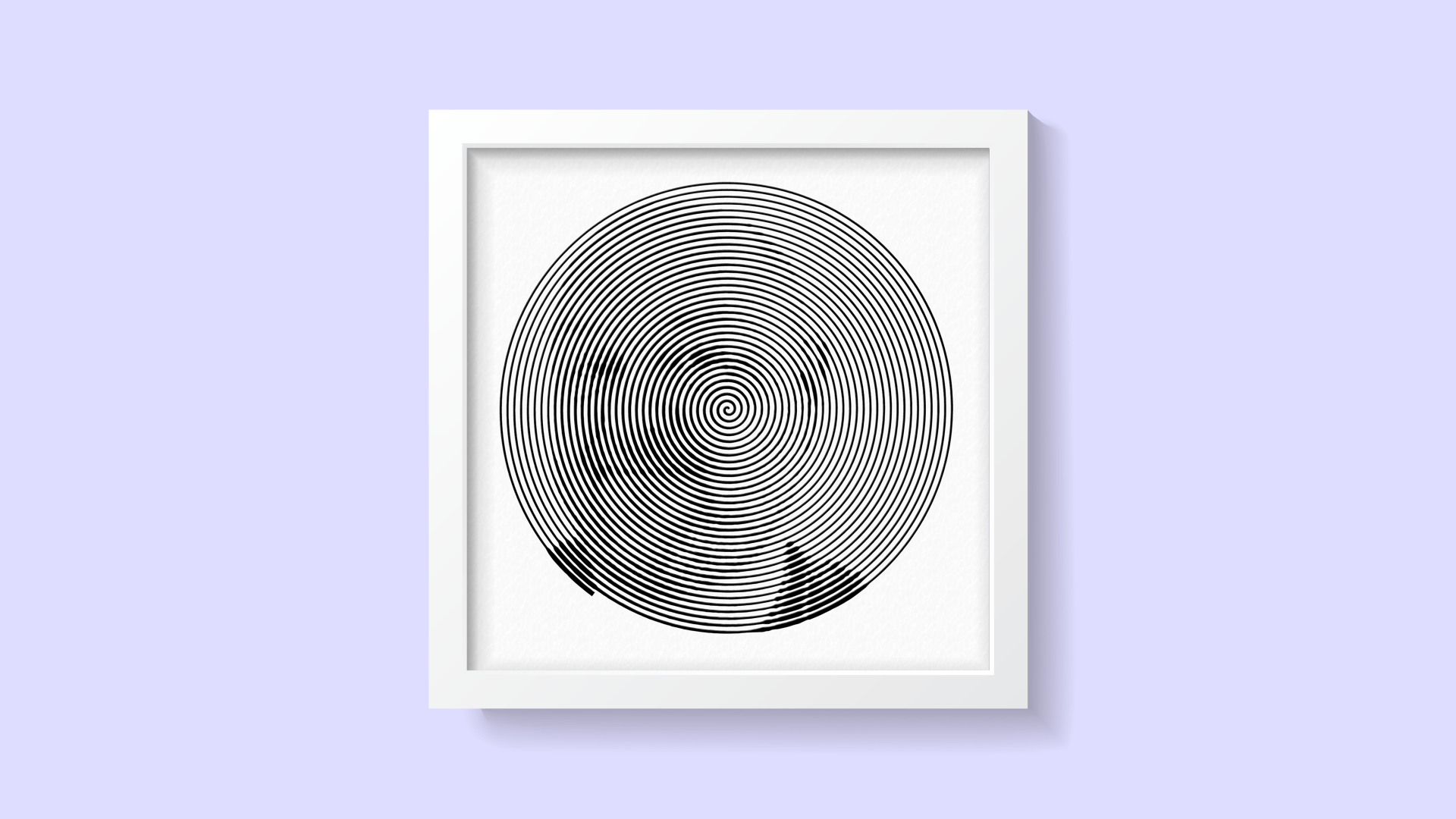
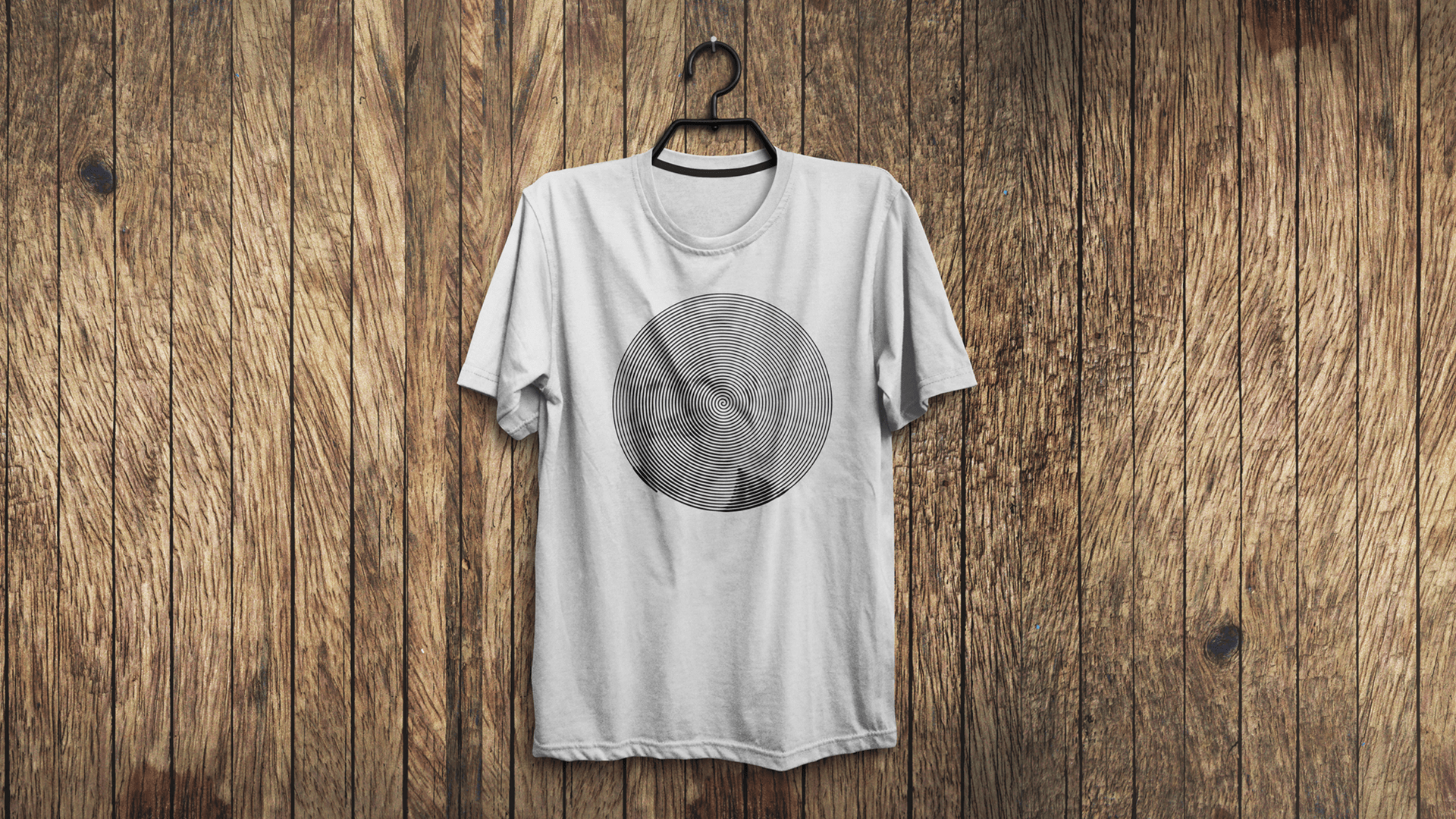
Neat eh?
Now, there are a few steps to get from creating the design, through creating the cutting file and on to setting up the machine for cutting vinyl – blade settings and depth etc – so I thought that I would throw together a video to cover those points.
I have not covered actually cutting this out, as that is pretty standard across the board and nor have I shown the application as this will vary depending on the material used and the project it is being applied to but there are plenty of tuts out there no matter what you want to do.
Obvs if you have any questions, bung them below and I’ll do my best to sound intelligent.
Right, that’s enough of that.
Ready for the video? Ok, it’s all yours.
There we go. That’s about it for this one.
Hope you enjoyed that tutorial and will give it a go yourself. If you do, and would like to share your creations with me you can find all of my social media links at the top of this page.
If you have any questions or comments, please feel free to leave them in the comments section below.
I look forward to hearing your thoughts.
More Useful Scan N Cut Stuff
If you found this information useful, you may also like to check out these other resources …
My dedicated Scan N Cut Tutorials YouTube channel, by playlist.
- Scan N Cut Tutorials (CM Models) Playlist
- Scan N Cut Tutorials (SDX Models) Playlist
- Canvas Workspace (for PC) Playlist
- Canvas Workspace (for Web) Playlist
- Canvas Workspace (for Mobile) Playlist
Please remember to like, subscribe and for notifications of future videos, hit the bell notification icon too!
Facebook Group
If you’d like to join a growing group of Scan N Cut enthusiasts then please do come and join Gentleman Crafter’s Scan N Cut Facebook Group at https://www.facebook.com/groups/gentlemancrafters.scanncut.group/
SVG Cutting Files
Want access to a growing library of ready-to-cut projects including layered frames, creative card bases and fun 3D projects? Then please do come and check out my Patreon page at https://www.patreon.com/GentlemanCrafterUK
Thanks for stopping by and I look forward to sharing more with you soon!
Bye for now.
J :)
There are literally hundreds more posts in the archives so please do check out the suggested posts at the bottom of this page or visit one of the category archives below or check out the related posts section at the end of this post.
 GENTLEMAN CRAFTER
Hi John I wonder if you can help me. I’ve followed your video for desk top version, however when I come to the fill lines they are blanked out , for some reason. Have you got any ideas why this is please. Would it be because I haven’t got enhanced imaging.
LikeLike
Do you mean on the machine?
LikeLike
in canvas
LikeLike
I’m a little lost as to what you mean by blanked out.
LikeLike
It will not let me alter the fill or the line
LikeLike
Have you imported the image and removed the cutting outline by mistake? Do you have the cutting outline selected?
LikeLike
I dot think so but will try again and see, & let you know.
LikeLiked by 1 person
Hi John, loved this video however I am unable to get the image to turn blue in canvas. I’ve tried going back into spiral Betty and changing settings but still to no avail. Any suggestions please. X
LikeLike
The tracing will be dependant on how thin the lines are so you might need to use thicker lines.
LikeLike
Thank, I will give this a try.
LikeLiked by 1 person
Love this idea – thanks so much for sharing it ! peace
LikeLiked by 1 person
Thanks for all you do for us.
LikeLiked by 1 person
Great demo John, thank you
LikeLiked by 2 people
Ewe made a nice shirt. I was baa ry impressed. Thanks for sharing.
LikeLiked by 2 people