
Tired of not being able to see all of your SVG files in your Windows 10 file browser? Bored of having to open every single one individually in order to find the one you want? Then read this!
If you have a large collection of SVG cutting files, like my Massive SVG Bundle you may be a little miffed that there is no built in support in your Windows computer whereby you can actually see what the files look like.
Basically you would see this …
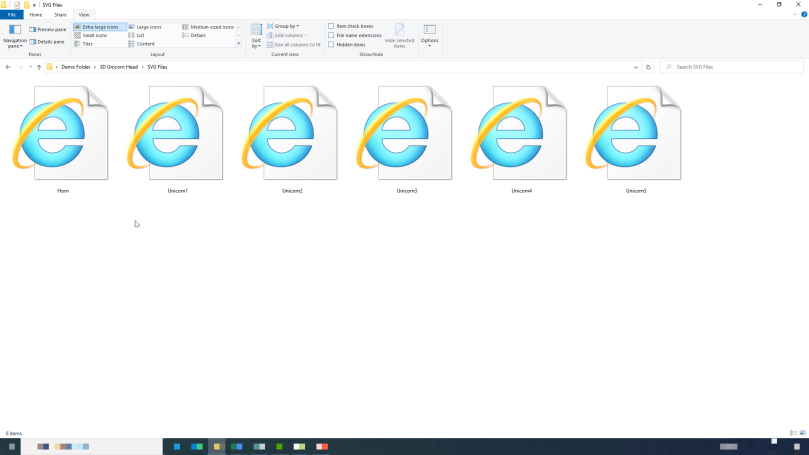
Gah! Hopeless!
For a long time I have been looking for a solution, other than including a rather large PDF document with piccies that I have spent hours generating / collating and recently I doubled-down on trying to find an answer.
The internet came up with many many answers but as ever, most of this information had gone out of date. Indeed the most popular solution that came up in quite a few YouTube videos and blog posts seems to have stopped working due to a recent Windows update and no info on whether it will be fixed.
For this reason I carried on my search until I came to the Microsoft Docs are of the internet.
There I stumbled upon an installable collection of utilities to upgrade some Windows 10 features called Power Toys which looked like it offered the perfect solution.
This installable app has a few cool little widgets that will add to some aspects of the Windows 10 experience but the one that I was particularly interested in was the File Explorer add-ons utility. This has the option to turn on SVG preview pane compatibility and SVG thumbnail support in Windows Explorer so you go from a bunch of internet explorer icons to a collection of thumbnails of the actual designs AND you can see a more detailed view in the preview pane!
Check out the comparison below – which would you prefer?!
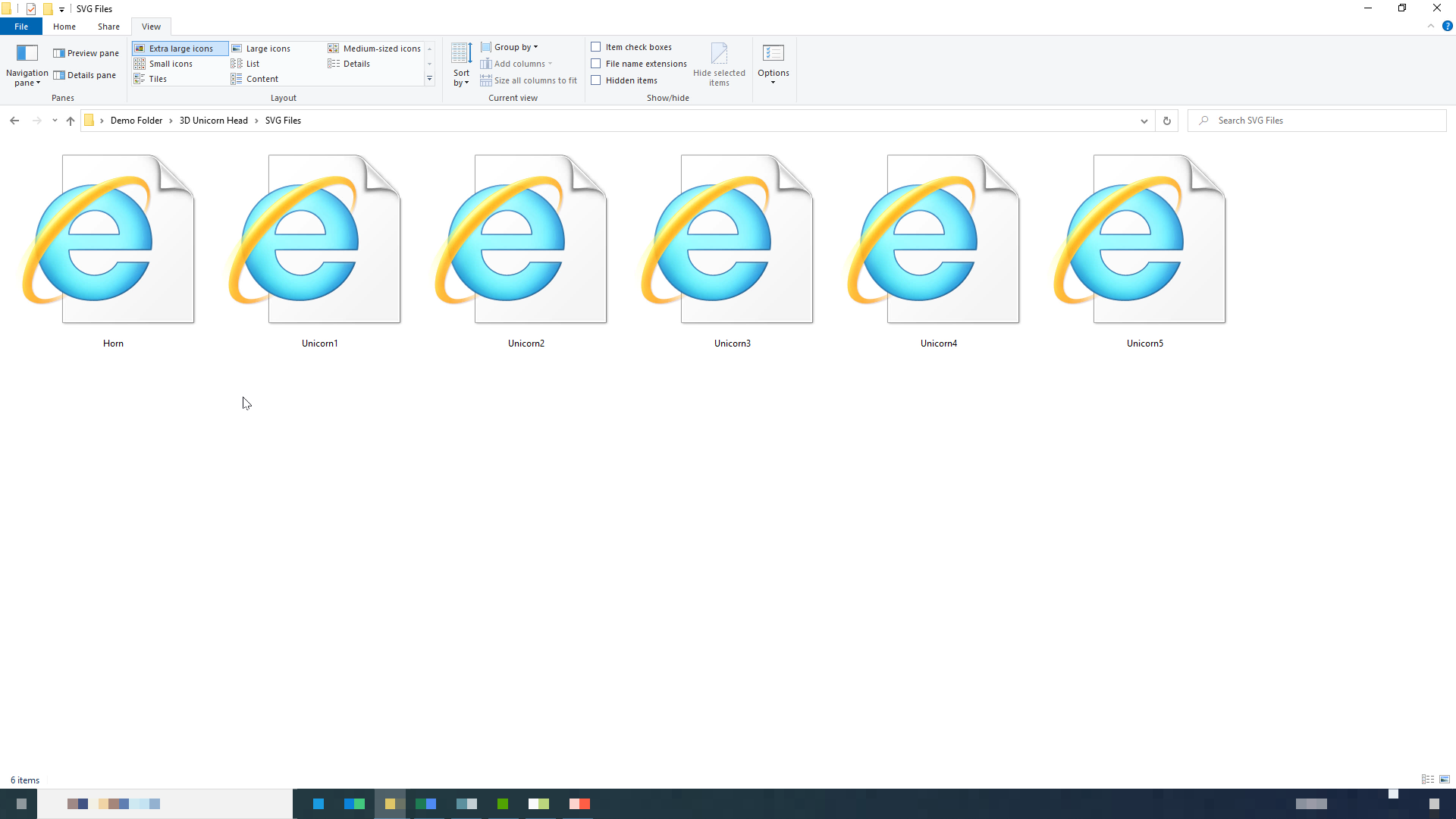
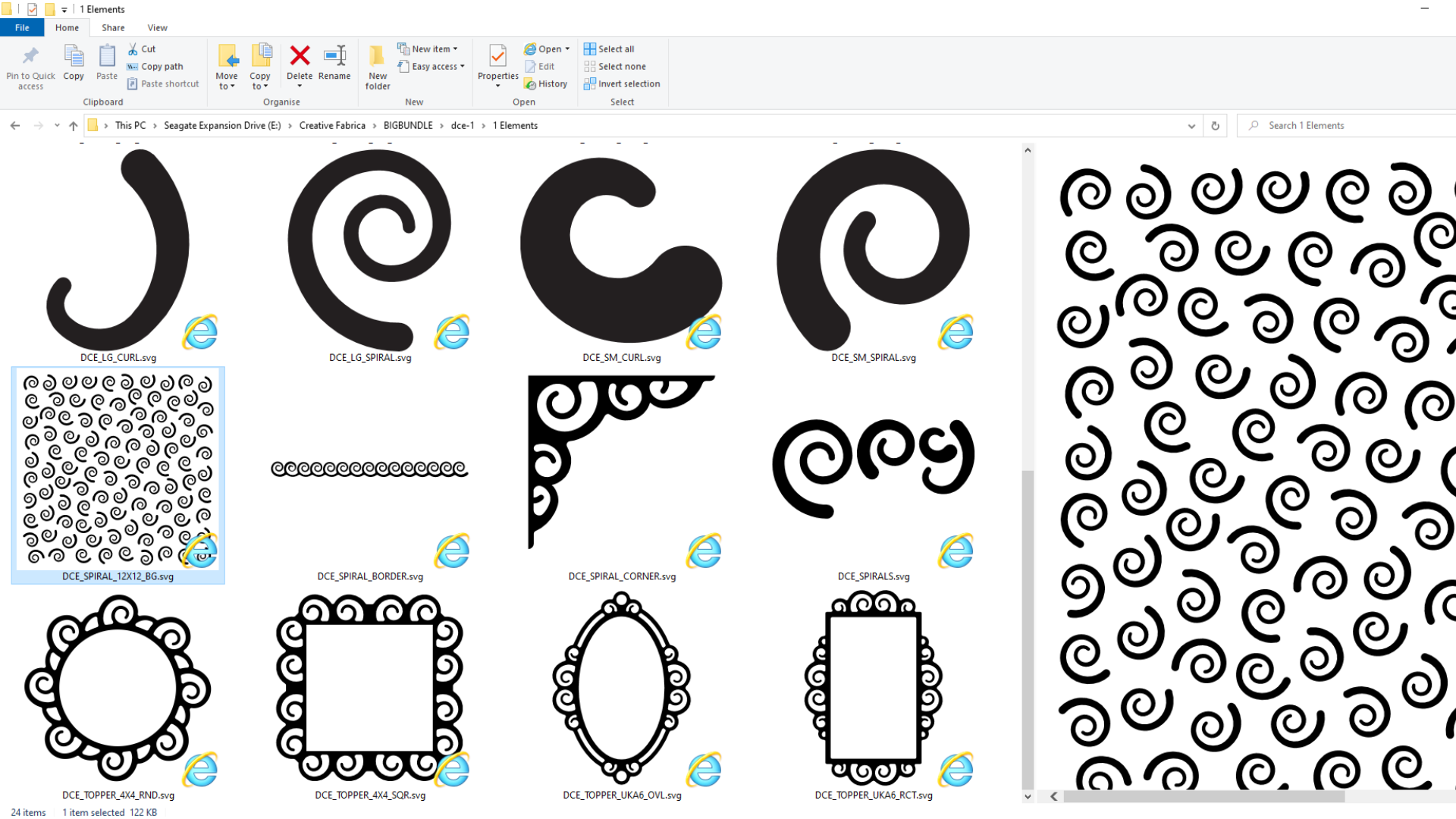
You should have heard me squeal with excitement!
Anyway, so blown away by this was I that I thought that I must share this with you and give you a quick guide as to how I downloaded and installed it in case it would be of use to you.
In simple terms, you would follow this process:
Note: This will only work for Windows 10 operating systems.
- Go to https://docs.microsoft.com/en-us/windows/powertoys/
- Click on the blue button marked Install Power Toys. Then again when it appears on the next page that opens. This launches a new window and takes you to the GitHub website.
- Scroll all the way to the bottom of the page until you reach the Assets section.
- Click on the link ending .exe and wait for the download to finish.
- Run the installer (.exe) file. You may have to open your downloads folder to find it.
- Run the app in Administrator mode (right click on the app icon after installation and choose Run As Administrator from the menu).
- After the app opens, click on File Explorer section down the left hand side and turn on all of the options.
- Close the app.
- Done!
Listen, I know that will be beyond some folks’ technical anxiety levels so it might be easier if I did a video … done!
Check it out below.
How To View SVG Files in Windows 10 Video Demonstration
Cool, right?!
Anyhoo, hope you find this useful.
That’s about it for this one.
If you have any questions or thoughts about the content of this post, please feel free to pop them in the comments section below. I look forward to hearing from you.
Many thanks for stopping by and hope to see you again soon!
Bye for now.
John.
There are literally hundreds more posts in the archives so please do check out the suggested posts at the bottom of this page or visit one of the category archives below or check out the related posts section at the end of this post.
| Papercrafts | Digital Crafts |
| Drawing and Painting | Fabric, Fibre & Yarn |
| Glass Crafts | Jewellery Making |
| Mixed Media | Needlepoint |
| Photography | Woodworking |
 GENTLEMAN CRAFTER
This is awesome. Thank you very much John.
Sent from Outlook ________________________________
LikeLiked by 1 person
This is great and was so easy to install
LikeLike
Great News. The Geek Squad remotely helped me install the tool. It is awesome.
You make our craft world so fun and efficient. Bless you. Pattie
LikeLike
HI John,
Was very excited to install your found gem…however, my Windows 10 system in Administrative mode sent me dialog boxes which state that I am trying to use a feature that is on a network resource that is unavailable. Next box indicates to enter an alternative path…
Could you help?
Thx Pattie
LikeLike
I can’t I’m afraid but feel free to submit the question to the developers.
LikeLike
Thanks so much, John for doing the legwork for us. I have 1,000’s of svg’s and it’s a hard slog to find what I want to use. We ‘snipped’ & printed your instructions. Unfortunately, it didn’t work. App didn’t open on Desktop to go forward from there to Step 7. I have Windows 10 and 64bit OS. Husband is on his laptop, giving it a go. Noy joy. Any assistance would be greatly appreciated as this is an absolute game changer!
LikeLiked by 1 person
Perhaps you might like to reach out to the developer?
LikeLike
Thanks John this is great, works with Edge too.
LikeLiked by 1 person
Great to hear. ❤
LikeLike
Thank You so much, Im relatively new to the Scan and Cut and was finding it quite annoying not seeing the files so this is fantastic!!
LikeLiked by 1 person
John this is amazing! Can’t thank you enough this makes things so much easier to view svg files now.
LikeLiked by 1 person
I have windows 10, followed your instructions, installed it, opened in administrative mode……. opened my svg files…NOTHING different. changed the view to extra large. Still no change. Any suggestions?
LikeLike
Do you have a 64bit OS?
LikeLike
I repeated everything again, then rebooted my computer. Worked great! Thanks so much for the help. It’s great to see them all lined up that way!
LikeLiked by 1 person
Thanks, John! This makes life so much easier – Best, Abe
LikeLiked by 1 person
Thank you very much Jon. Very helpful.
LikeLiked by 1 person
Great, thanks John. I gave up trying to view SGvs , such a time saver,
LikeLiked by 1 person
Thanks so much for sharing John. I used to have an SVG viewer installed but it stopped working ages ago. This will save me so much time x
LikeLiked by 1 person
Hi John. Does this only work on Windows 10 I have windows 7 Home premium and could not open the downloaded file. Thanks x
LikeLike
Yes, as mentioned in the blog post and on the Microsoft website, in the video title and download page, this is for Windows 10.
LikeLike
Hi John
I downloaded the file just as you said but it won’t open for me and when I look at my sag files they are just the same, please can you advise? thanks
LikeLike
Two questions:
Are you using Windows 10?
Did you run the installer after downloading?
LikeLike
I had to change to larger icons in the drop down viewer
LikeLiked by 1 person
Thanks John, That will be really helpful. You are a star
LikeLiked by 1 person
Dear John,
Bless your heart, Thank you so much for sharing this, it is epic and much needed.
Your efforts can be best described as the little blob of oil on the cog of life.
❤❤❤ 😘
Most thankfully
Jacqui Butler.
Get Outlook for Android
________________________________
LikeLiked by 1 person
Thank you so much John,thats more than useful.
LikeLiked by 1 person
Brilliant!
Thank you for taking the time to find a solution but even better that you have put it in lay persons language!
You are one of a kind John, thank you so much!
LikeLiked by 1 person
Awesome John! Worked a treat, thank you so much! :) x
LikeLiked by 1 person
Great use to annoy me too, could spend more time trying to find things than craft. Thank you for sharing this, I done it and it works great.
LikeLiked by 1 person
Fantastic! Thank you, John
LikeLiked by 1 person
Ha! That’s so spooky. I was feeling just the same last weekend until my O/H went on t’internet and found me a whizzy SVG file preview addon to Explorer.
Not the same one as you, but it works wonderfully and it’s SOOOO much easier to find stuff :) Clare x
LikeLiked by 1 person
Well done for ferreting that little gizmo out 👍. Will be adding that in soon. Thanks for generously sharing.
LikeLiked by 1 person
Oh wow! I must say you are such a little wiz, and a pocket saver. Most companies charge through the roof for something like this but you find the free stuff and are so generous to share it with us. Thank you so much John. xx
LikeLiked by 1 person
Whow !! Thank you so very much John,
You are such a clever man
You give all of us such inspiration.
Xx
LikeLiked by 1 person
Fabulous John thank you xx
LikeLiked by 1 person
This is fantastic news and a great option as other companies do charge an arm and a leg. Thankyou so so much John. 👍
LikeLiked by 1 person
Wow! Many thanks Jon! So useful. I am going to try this in a bit! Visuals are so useful too by way of the video!
LikeLiked by 1 person